

Table of contents
- What you need before you start
- How to listen to a PDF offline with Local TTS
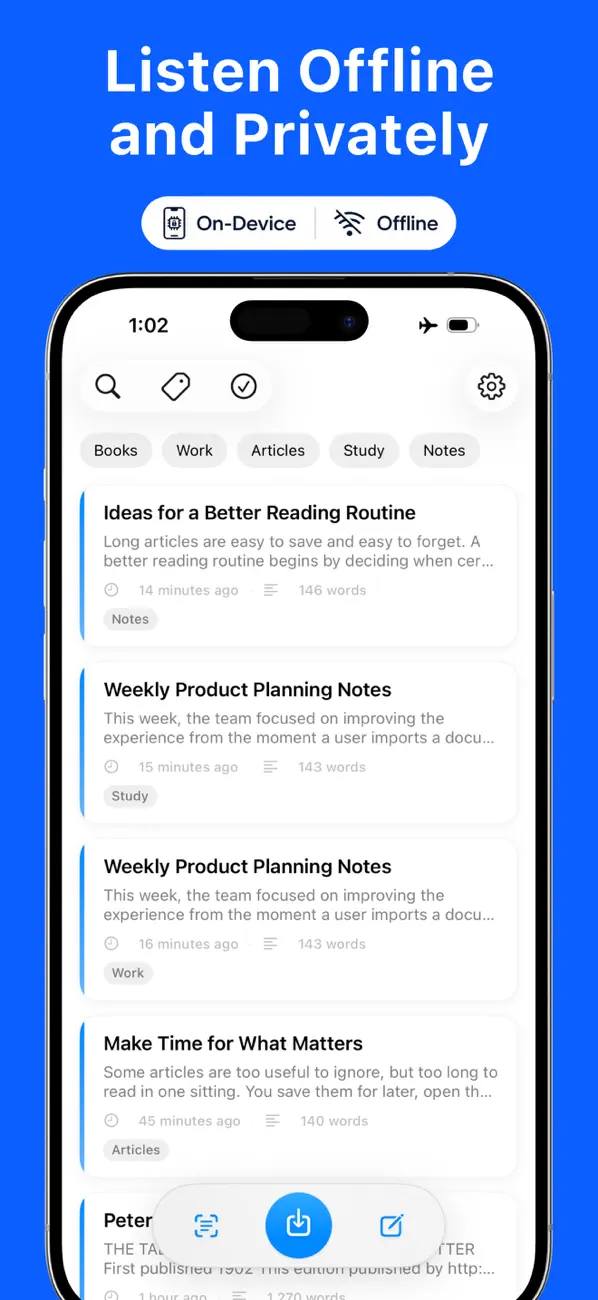
- How to verify that it really works without internet
- Can it read scanned PDFs?
- How to use the iPhone’s built-in reading feature
- Why an offline PDF reader offers stronger privacy
- What to check when a PDF does not read correctly
- Frequently asked questions
- Turn screen time into listening time
There are times when you need to read a PDF but cannot keep looking at the screen. You might want to review a report during your commute, study a paper while walking, or give your eyes a break while listening to an e-book. Offline playback also matters when your connection is unreliable or you do not want to send a document to a speech server.
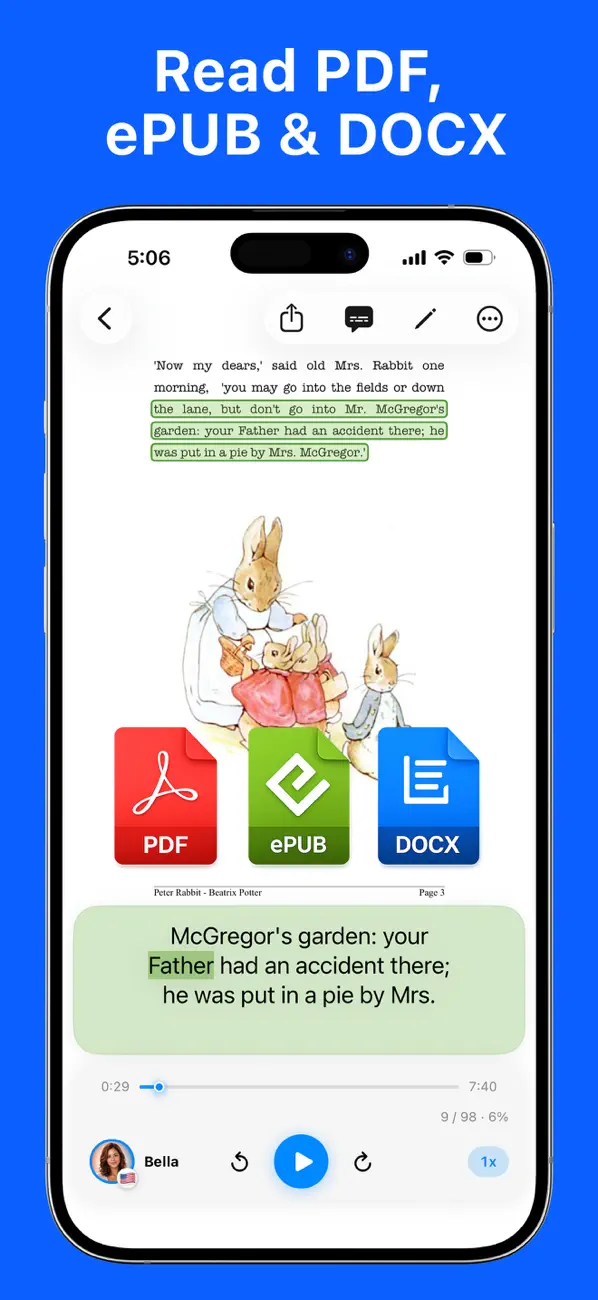
One way to read a PDF aloud offline on iPhone is to save the file on your device and import it into Local TTS. Text extraction and speech generation happen on your iPhone, so you can listen without uploading the document. You can follow the highlighted text and keep listening after you lock the screen.
Quick method: Download the PDF in Files → import it into Local TTS → choose a voice → tap Play. Once the app and file are on your iPhone, speech generation does not need internet access.
Fact check: Product features, plan limits, and device requirements in this guide were checked on August 10, 2026 against the current App Store listing for Local TTS 2.1.5. iPhone system instructions link to Apple’s current user guides.
What you need before you start
Check these three things before going offline.
| Requirement | What to check |
|---|---|
| Device | iPhone 12 or later with iOS 18.6 or later |
| App | Local TTS is installed |
| The complete file is downloaded to your iPhone |
Seeing a filename in iCloud Drive does not always mean its contents are stored locally. To keep an iCloud Drive PDF available offline, touch and hold it in Files and choose the option to keep it downloaded, or save a copy under On My iPhone. Apple documents this in its guide to keeping selected files downloaded. PDFs downloaded from Safari are normally in the Downloads folder in Files, as explained in Apple’s guide to finding downloads on iPhone.
Local TTS includes its neural voice models in the app. You do not need a separate language pack or API key.
How to listen to a PDF offline with Local TTS
1. Save the PDF on your iPhone
Save the PDF from Mail, Safari, Messages, or your cloud storage provider to Files. If you plan to listen on a plane or somewhere with poor coverage, open the file first and make sure it has finished downloading.
These are the most useful places to check in Files:
- Recents
- Downloads in iCloud Drive
- On My iPhone
- The folder for your cloud storage provider
Apple’s Files basics guide explains how to find, move, and share files on iPhone.
2. Import the PDF into Local TTS
Download Local TTS free from the App Store, then open the app. Choose the file import option and select the PDF you saved.
Local TTS extracts readable text from the PDF and creates a listening item. It is not simply speaking whatever happens to be visible on the screen, so you can find the document again inside the app and continue from your previous position.
The free version lets you test file import and listen to up to 500 characters per note. Full multi-page PDF import and unlimited text are available with Pro.
3. Choose a voice for the document
For a multilingual document, start with the voice that supports all 31 languages. Local TTS uses Supertonic 3 to generate English, Spanish, French, German, Japanese, Korean, and 25 other languages directly on your device.
If you mainly listen to English, compare the American and British voices powered by Kokoro-82M. Three English voices are included in the free version.
Start at 1× speed to check names, numbers, and technical terms. You can then move to 1.25× or 1.5×. Dense papers and contracts are harder to follow at high speed because tables, footnotes, and paragraph boundaries may be easy to miss.
4. Play the PDF and lock the screen
Tap Play and Local TTS highlights the part being spoken. You can pause, move backward or forward, and adjust the speed for each document.
Playback continues when you lock the screen or switch to another app. Use the Lock Screen or Control Center to pause and resume while commuting, walking, exercising, or doing housework.
With Pro, you can also export the reading as an M4A audio file. This is useful when you want to replay the same document or move the audio to another device or media player.
Install Local TTS free and listen to your PDF offline. No account or speech-server upload is required.
How to verify that it really works without internet
Test the complete workflow before an important trip:
- Install Local TTS.
- Download the PDF to Files.
- Import it into Local TTS and play the first sentence.
- Turn on Airplane Mode in Control Center.
- Close and reopen the app, then play a different part of the document.
- Lock the screen and test pause and play from the Lock Screen.
The expected result is that the saved document still plays with Wi-Fi and cellular data unavailable. If it does not, confirm that both the PDF and Local TTS are already on the device.
There is one important exception: a PDF that exists only in iCloud Drive or another cloud service needs a connection before it can be opened. Speech generation is offline, but the source PDF must already be on the device.
Can it read scanned PDFs?
PDFs generally fall into two groups:
- Text PDF: You can select or search for the words in the document.
- Scanned PDF: Each page is an image of a paper document.
Local TTS can extract the words from a text PDF directly. A scanned PDF without a text layer may not contain anything for a standard importer to read.
For a scanned page, prepare the page as an image and use photo import or the camera scanner in Local TTS. On-device OCR recognizes the words, and the app reads the result with the same offline voices. The image and recognized text are not sent to an OCR server.
OCR works best when you:
- Photograph the page straight on.
- Avoid shadows and glare.
- Keep the text in focus.
- Capture one page at a time.
- Check names, numbers, and specialist terms before playback.
How to use the iPhone’s built-in reading feature
If you only need to hear a short PDF or the current screen occasionally, iPhone also has a built-in option.
- Open Settings.
- On iOS 26, go to Accessibility, then
Read & Speak. On iOS 18, go to Accessibility, thenSpoken Content. - Turn on
Speak Screen. - Open the PDF and swipe down with two fingers from the top of the screen.
Apple’s guide to hearing iPhone speak onscreen text explains how to change the voice, language detection, speaking rate, and highlighting.
Apple documents that Speak Screen can read all onscreen text and provides controls for pausing, changing speed, and moving forward or backward. Available settings vary by iOS version; Apple’s current iOS 26 guide also lists voices, language detection, pronunciation settings, and spoken-text highlighting.
Local TTS provides a different workflow documented in its App Store listing: it imports PDF, EPUB, DOCX, TXT, and Markdown files as listening items; performs camera and photo OCR on-device; supports Lock Screen and Control Center playback; and offers M4A export with Pro.
Why an offline PDF reader offers stronger privacy
A cloud-based TTS workflow sends text to a remote service for speech generation. Encryption or later deletion does not change the fact that the text is processed outside the device.
Local TTS processes PDF text extraction, language detection, and speech generation on your iPhone. Work reports, unpublished manuscripts, class material, and personal notes do not need to be sent to a speech server. There is no Local TTS account, advertising, or analytics tracking inside the app.
For a closer comparison of offline processing, pricing, and document features, read Local TTS vs NaturalReader.
What to check when a PDF does not read correctly
No text appears
The document may be a scanned PDF made entirely of images. Check whether you can select or search its text. If you cannot, use photo import or camera OCR.
Tables and footnotes play in the wrong order
Two-column layouts, complex tables, headers, and footnotes can store text in a different order from the visual page. Preview the first page of an important document. For a difficult section, copying only the main text into a new note may produce a cleaner result.
The PDF will not open in Airplane Mode
The file may still exist only in iCloud or another cloud service. Download it to the device while connected, then test again.
A multilingual document uses the wrong pronunciation
A title or name can be too short to identify reliably. Include a complete sentence and use the multilingual voice. Correct any OCR mistakes before playback.
The app is not available for the device
On-device neural speech requires a relatively recent chip. Local TTS supports iPhone 12 or later with iOS 18.6 or later. On iPad, it requires iPad 10th generation or later, iPad Air 4th generation or later, iPad mini 6th generation or later, or an M1 iPad Pro or later.
Frequently asked questions
Does Local TTS upload my PDF to a server?
No. PDF text processing and speech generation happen on the device. You do not need a Local TTS account.
Can I try PDF reading for free?
Yes. The free version includes file import, one multilingual voice, three English voices, and up to 500 characters per note. Full multi-page PDF import and unlimited text are Pro features.
Can it read non-English PDFs offline?
Yes. The Supertonic 3 multilingual voice reads all 31 supported languages offline, including Spanish, French, German, Japanese, and Korean.
Can I save a PDF as an audio file?
Pro can export speech as an M4A file. If you share or publish it, check the copyright for the source document and the terms for synthetic speech.
Turn screen time into listening time
Local TTS can import a PDF directly without a separate web conversion service. Save the source file on your iPhone and import it into the app. The document and generated speech stay on the device, speech generation remains available without internet, and playback continues after you lock the screen.
Start with a short PDF and test the free voices with your own material.
Download Local TTS free and listen to your first PDF offline.
Turn any text into speech — offline
Local TTS reads PDFs, e-books, and articles aloud right on your iPhone — private, natural, and yours.
Download on the App Store