

Table of contents
- Why text-to-speech fits a student workflow
- How to listen to textbooks, PDFs, and notes on iPhone
- Which study formats can iPhone read aloud?
- Four practical ways students can use text-to-speech
- How offline text-to-speech works
- How to save study text as an M4A audio file
- Local TTS Free and Pro for students
- Can the iPhone read text without another app?
- Frequently asked questions
- Turn your next reading assignment into a listening session
A long reading list does not always have to mean more time looking at a screen. With text-to-speech for students on iPhone, you can listen to a textbook chapter, follow a highlighted research paper, review a Word document on a walk, or hear a printed handout after scanning it with the camera.
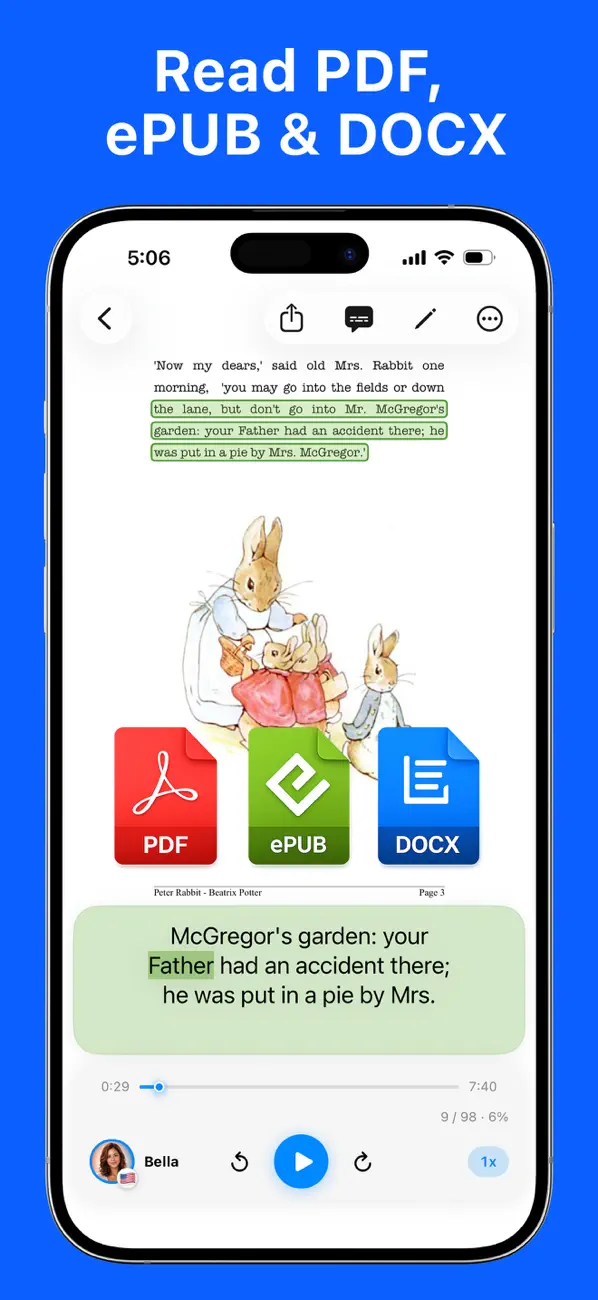
The simplest method is to save your study file to the iPhone, import it into Local TTS, choose a voice, and tap Play. Speech is generated on the device, the current words are highlighted as you listen, and playback can continue after you lock the screen.
Quick answer: Local TTS reads PDF, EPUB, DOCX, TXT, Markdown, pasted text, and text recognized from a photo or camera. Save the source file to your iPhone, import it, and press Play. You can then read along, adjust the speed, or listen from the Lock Screen.
Research and fact check: This guide responds to recurring community questions about large textbook PDFs, reading while listening, and keeping generated audio for later study. Local TTS features, US prices, and device requirements were checked on August 12, 2026 against its official App Store listing.
Why text-to-speech fits a student workflow
Text-to-speech gives you another way to work through assigned material. You can keep your eyes on the text when a section needs close attention, or listen while doing a task that does not require reading another screen.
Common student workflows include:
- Read and listen together: synchronized highlighting helps you keep your place in a dense paragraph.
- Review away from a desk: background playback lets you hear notes while walking, commuting, or organizing your room.
- Proofread by ear: listening to an essay can reveal repeated words, missing words, and sentences that need a smoother rhythm.
- Hear printed material: camera and photo OCR turns a worksheet or handout into selectable text and speech.
- Prepare for limited connectivity: on-device speech generation keeps working after the file is downloaded.
Text-to-speech does not summarize or replace the source. It reads the text so you can choose when to listen, when to look closely, and when to return to a section.
How to listen to textbooks, PDFs, and notes on iPhone
1. Save the study material to Files
Start with a file you are allowed to use. Save it from Safari, Mail, Messages, your school portal, or a cloud storage app to Files.
If you plan to study without internet, confirm that the complete file is downloaded. An item listed in iCloud Drive may still need a connection until you download it. Apple’s guide to keeping selected files downloaded explains how to keep a file available on the device.
2. Import it into Local TTS
Download Local TTS free from the App Store, open the app, choose the import option, and select your file.
The app extracts readable text and creates a listening item you can find again. For a detailed PDF walkthrough, see how to read a PDF aloud offline on iPhone.
3. Choose a voice and a comfortable speed
Start at 1× speed for a paragraph with names, dates, formulas, or technical terms. Move to 1.25× or 1.5× when the material is familiar. A slower speed can be useful when you need to compare the audio with a chart, citation, or definition.
For English material, Local TTS includes American and British neural voices powered by Kokoro-82M. The multilingual voice reads English and 30 other supported languages offline, which is useful when your notes include more than one language.
4. Follow the words or lock the screen
Keep the app open when you want to read and listen together. The word-by-word highlight shows where the voice is in the text.
When you only need the audio, lock the iPhone or switch to another app. Playback continues in the background, and you can pause or resume from the Lock Screen or Control Center.
Install Local TTS and test a paragraph from your own study material. No account is required.
Which study formats can iPhone read aloud?
The best import method depends on how the material is stored.
| Study material | Recommended method | Useful for |
|---|---|---|
| Text-based PDF | Import the PDF | Research papers, syllabi, reports, textbook PDFs |
| DRM-free EPUB | Import the EPUB file | Open e-books and course readings |
| Word document | Import the DOCX file | Essays, assignments, lecture notes |
| TXT or Markdown | Import the file | Plain notes, study guides, drafts |
| Copied text | Paste it into a new note | Short excerpts, emails, web articles |
| Printed page or photo | Use camera or photo OCR | Worksheets, handouts, photographed book pages |
Text PDFs and scanned pages are different
If you can select or search the words in a PDF, it probably contains a readable text layer and can be imported directly. If each page is only an image, a normal PDF importer may not find text to read.
For a printed or scanned page, take a clear photo or select an existing image in Local TTS. On-device OCR recognizes the text, and you can check it before listening. Capture one page at a time, keep the camera parallel to the paper, and avoid shadows over the text.
Check complex academic layouts before a long session
Columns, tables, running headers, footnotes, equations, and figure captions can be stored in a different order from the way they appear on the page. Preview an important document before starting a long listening session.
For a complex section, copy the main paragraph into a separate note. This keeps your original file intact while creating a cleaner listening version for review.
Four practical ways students can use text-to-speech
Listen to a textbook chapter while following the text
Import a supported PDF or DRM-free EPUB, start playback, and keep the highlighted text visible. Pause at diagrams, definitions, and examples that need visual attention. Then resume the audio when you return to the main text.
Review lecture notes away from your desk
Import a DOCX, TXT, or Markdown study guide and listen with the screen locked. This works well for material you have already read and want to review again before a class or exam.
Proofread an essay by listening
Import your DOCX draft or paste a section into a new note. Listen at a natural speaking rate and mark anything that sounds incomplete, repetitive, or difficult to follow.
Text-to-speech does not edit the essay for you. It gives you an audio pass that can make some writing issues easier to notice before you revise the original document.
Hear a printed worksheet or handout
Use the camera when your material is available only on paper. Review the recognized text for names, numbers, and symbols, then press Play. OCR and speech generation both run on the device.
How offline text-to-speech works
Local TTS performs text extraction, language handling, camera and photo OCR, and neural speech generation on your iPhone or iPad. Your study text does not need to be sent to a speech server, and the App Store privacy label states Data Not Collected.
To prepare for a flight, subway ride, or low-service area:
- Install Local TTS while connected.
- Download the complete source file to the iPhone.
- Import it and play a short section.
- Turn on Airplane Mode.
- Play a different section and test the Lock Screen controls.
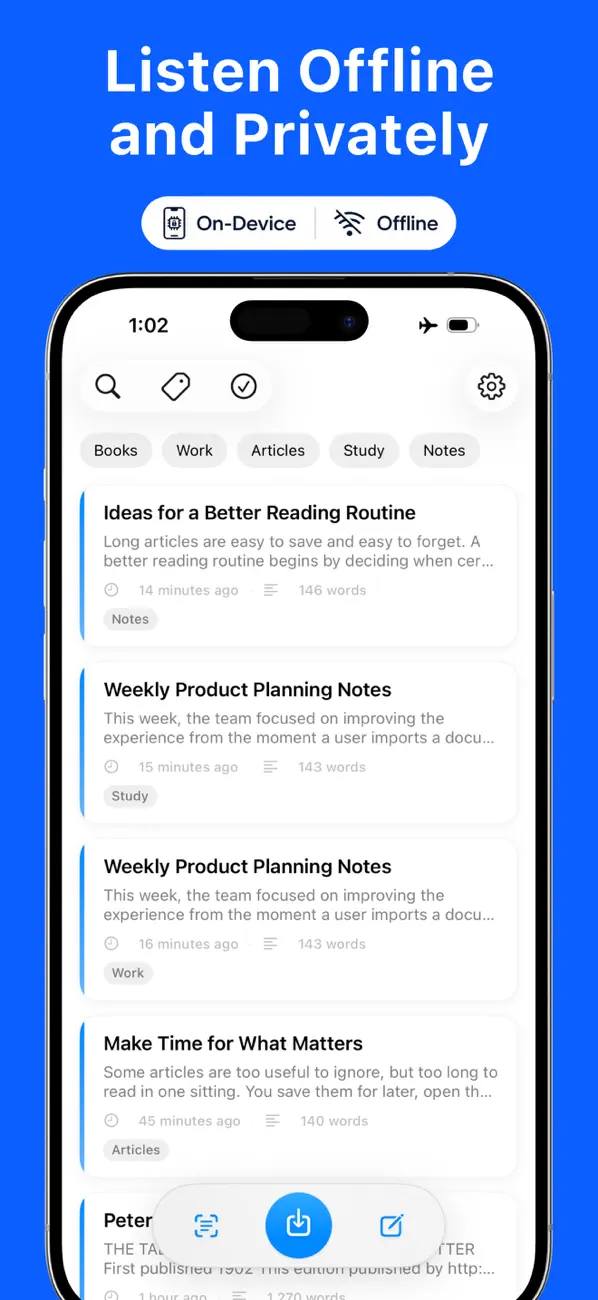
The source must already be on the device. Speech generation is offline, but an undownloaded file in iCloud Drive or another cloud service still needs a connection before it can be imported.
How to save study text as an M4A audio file
Local TTS Pro can export generated speech as an M4A file. This is useful when you want to keep an audio review in Files, transfer it to another personal device, or play it in an app that supports M4A.
The basic workflow is:
- Import the document or paste your text.
- Select the voice you want to use.
- Generate and review the speech.
- Choose the M4A export option.
- Save or share the file from the iOS share sheet.
M4A export does not change the rights attached to the source. Use material you created, material you have permission to convert, or material whose license allows your intended use. Review the applicable terms before sharing generated audio publicly.
Local TTS Free and Pro for students
Local TTS is free to download, so you can check the import workflow and voices with your own material before choosing Pro.
| Feature | Free | Pro |
|---|---|---|
| Text length | Up to 500 characters per note | Unlimited text |
| Voices | 1 multilingual and 3 English voices | Full multilingual and English voice catalog |
| PDF, EPUB, DOCX, TXT, MD | Import and test within the free limit | Unlimited text import |
| Full multi-page PDF import | — | Included |
| Camera and photo OCR | Included within the note limit | Included with unlimited text |
| M4A audio export | — | Included |
| US price | Free | $4.99 monthly or $19.99 one-time lifetime purchase |
On-device neural speech requires an iPhone 12 or later with iOS 18.6 or later. Supported iPads include iPad 10th generation or later, iPad Air 4th generation or later, iPad mini 6th generation or later, and M1 iPad Pro or later.
If you are still choosing a reader, the 2026 iPhone text-to-speech app comparison explains how Local TTS, Speechify, NaturalReader, and Apple’s built-in reading feature differ by workflow.
Can the iPhone read text without another app?
Yes. Apple’s built-in Read & Speak feature can read the current screen. On iOS 26, open Settings → Accessibility → Read & Speak, turn on Speak Screen, then swipe down with two fingers from the top of the display. On iOS 18, the setting is called Spoken Content.
Apple’s guide to hearing iPhone speak onscreen text covers voices, speed, language detection, and highlighting. This is a convenient option for occasional onscreen reading.
Local TTS provides a document-centered workflow: supported files become listening items, word highlighting stays synchronized with the generated audio, playback continues from the Lock Screen, and Pro can export M4A files.
Frequently asked questions
How can I make my iPhone read a textbook aloud?
Save a supported PDF, DRM-free EPUB, or Word file to Files. Import it into Local TTS, choose a voice, and tap Play. Keep the text visible to follow the word highlighting, or lock the screen when you only need the audio.
Can I listen to a PDF and read along at the same time?
Yes. Local TTS displays extracted text and highlights the current words in sync with the audio. Pause when you need to study a table, figure, citation, or equation more closely.
Does text-to-speech work without Wi-Fi?
Yes. Local TTS generates speech on the device. Download the source document before going offline if it is stored in iCloud Drive or another cloud service.
Can my iPhone read a printed worksheet aloud?
Yes. Take a picture in Local TTS or select a saved photo. On-device OCR recognizes the text so you can review it and listen without uploading the image.
Can I save the reading as an audio file?
Local TTS Pro exports generated speech as an M4A audio file. Follow the copyright and license terms for the source material, especially before sharing the audio.
Is Local TTS free for students?
It is free to download and supports up to 500 characters per note with one multilingual voice and three English voices. Pro adds unlimited text, full multi-page PDF import, every voice, and M4A export.
Turn your next reading assignment into a listening session
Start with one paragraph from a real assignment. Import or paste it, compare the free voices, and choose a speed that lets you understand the material comfortably. Then decide whether you want to read along, continue from the Lock Screen, or export your own eligible material for later review.
Download Local TTS free from the App Store and listen to your first study note on your iPhone.

Turn any text into speech — offline
Local TTS reads PDFs, e-books, and articles aloud right on your iPhone — private, natural, and yours.
Download on the App Store