

Table of contents
- What one frame of playback actually contains
- Why two highlight layers instead of one
- Auto page turn: the feature you only notice when it is missing
- What the position readout is for
- Everything on that screen was produced on the phone
- Reproducing the demo yourself
- Where following along actually helps
- Frequently asked questions
- The claim worth checking
Every text-to-speech app in the App Store says it reads PDFs aloud. Very few show you what that looks like once you press play, and the difference between the claims is not the voice. It is whether the screen keeps up with the voice.
A PDF is not a wall of plain text. It is pages, with columns, figures, captions, and page breaks. An app that only produces audio leaves you with a decision every couple of minutes: stop listening and find your place, or keep listening and lose it.
Short answer: Read-along playback means the app shows you where the voice is while it speaks. In Local TTS this runs on two layers at once — a box drawn around the sentence being spoken on the rendered PDF page, and a word-level highlight in a large-type panel below it — and the page view advances by itself when the voice reaches the bottom of a page. All three behaviors are produced on the device, so they work in airplane mode.
Download Local TTS free from the App Store and watch it follow your own PDF.
What this article is based on: the clip embedded below is an official Local TTS demo — unedited screen footage of the app reading a freely distributed public-domain edition of The Tale of Peter Rabbit as an illustrated PDF: 82 sentences, 7 minutes 40 seconds of speech. Product facts, plan limits, and device requirements were checked on August 23, 2026 against the current App Store listing for Local TTS 2.1.5. This is our own app; the point of publishing the raw footage is that you can check every claim below against it rather than take our word for it.
What one frame of playback actually contains
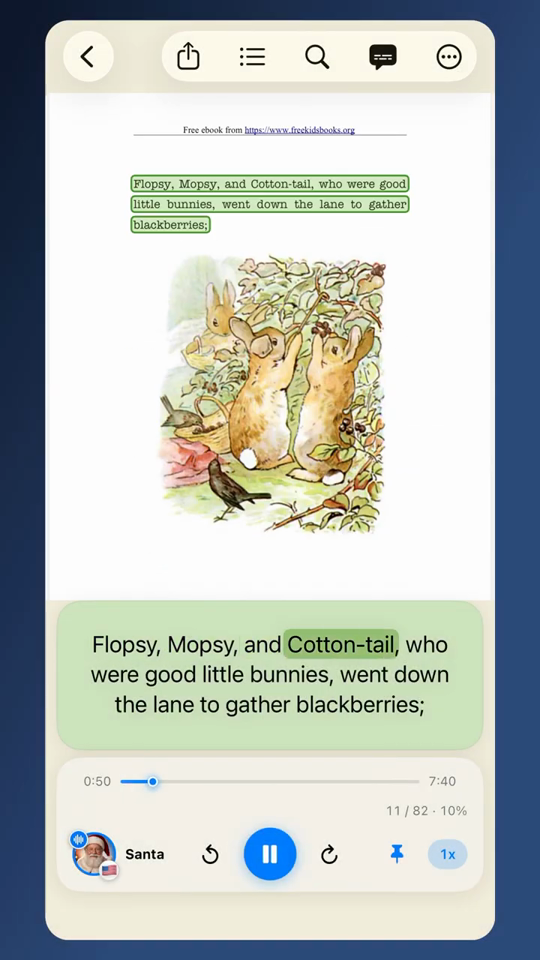
Pause it at any moment and the screen is answering four different questions at the same time.
| What you see | The question it answers | Why it has to be on screen |
|---|---|---|
| A box around three lines of the rendered page | Which sentence is being read | Keeps you oriented in the real document, with its figures and layout intact |
| The same sentence repeated in large type below | What the words are | Original PDF type is often too small to follow at listening distance |
| One word inside that sentence highlighted darker | Where the voice is right now | Lets you glance back mid-sentence without rewinding |
11 / 82 · 10% and a 0:50 / 7:40 time bar | How far in you are | Sentence 11 of 82, and 50 seconds into 7:40 of speech |
None of this is decoration. Each element exists because listening to a long document produces a specific kind of confusion, and each one removes one of them.
Why two highlight layers instead of one
The obvious design is a single highlight on the PDF page itself. Local TTS draws a second one, and the reason is that a PDF page is a fixed layout that was never designed to be read at arm’s length.
The page in the demo is a children’s book set in a typewriter-style face at a size chosen for print. On a phone, at the distance you actually hold it while walking, individual words on the rendered page are legible but not comfortably trackable. Highlighting a word there would be technically correct and practically useless.
So the two layers split the job:
- The page box is for orientation. It tells you which part of the real document — the one with the illustration of three rabbits gathering blackberries — is being read. It moves once per sentence, which is slow enough to follow with a glance.
- The text panel is for reading. It re-renders the current sentence at a comfortable size and highlights one word at a time. It moves several times per second, which is only useful because the type is large enough to track.
Look closely at the highlighted word in the poster frame above: Cotton-tail. The highlight covers the whole hyphenated compound rather than flashing across Cotton and then tail. That is a deliberate segmentation choice — a naive word splitter treats a hyphen as a boundary and produces two highlights for one spoken word, which reads on screen as a stutter. Hyphenated names, compound adjectives, and em-dash constructions are common enough in real documents that getting this wrong is visible within the first minute.
If you want to feel the timing without installing anything, the Local TTS home page has the same effect running on a sentence from the same book.
Auto page turn: the feature you only notice when it is missing
This is the one behavior a still image cannot show, so watch the clip for it. Around the seven-second mark the counter moves from sentence 11 to sentence 12, the illustration changes from three rabbits gathering blackberries to Peter squeezing under a gate, and the voice does not pause. Nobody touched the screen.
In this edition each page carries one sentence and one picture, so getting through its 7:40 of speech means the page view has to advance dozens of times. Without automatic advance, every one of those is an interruption: take the phone out, unlock it, find the page control, swipe — which defeats the reason you were listening in the first place. Read-aloud that requires you to hold the phone is a strictly worse way to read than reading.
When the voice reaches the end of the text on a page, the rendered view moves to the next page and playback continues without a gap. In practice this is what turns a PDF into something you can listen to on a walk, in a car, or with the phone face down on a desk. It is also what makes the lock-screen and background playback genuinely usable rather than a checkbox — background audio only helps if the app can get through the document unattended.
What the position readout is for
11 / 82 · 10% and 0:50 / 7:40 look like two versions of the same information. They are not.
The left readout counts sentences: this is sentence 11 of the 82 the app split the document into, and you are about 10% of the way through it. That is the unit Local TTS actually reads, highlights, and resumes from, which is why it is the one on screen. The time bar is about the audio: 50 seconds played of 7 minutes 40 seconds total. You need the first to decide where to pick up tomorrow and the second to decide whether to start it before a ten-minute walk.
Both matter more for imported documents than for pasted text, because Local TTS keeps a PDF as a saved listening item rather than a one-off utterance. Close the app mid-sentence and the document is still there with your position in it. This is the practical line between importing a document and using a general screen reader that speaks whatever is currently on display — the screen reader has no memory of the document, because as far as it is concerned there is no document, only a screen.
Everything on that screen was produced on the phone
The part that is easy to miss: synchronized highlighting is usually a cloud feature.
To highlight a word at the moment it is spoken, something has to know when each word starts in the generated audio. Cloud text-to-speech services return those timings alongside the audio file, which means the text was sent to a server to get them. An app can only highlight offline if it generates both the audio and the timings locally.
Local TTS does. The speech comes from Supertonic 3 for the multilingual voice covering all 31 supported languages, or Kokoro-82M for the 28 American and British English voices, and the word timings come out of the same on-device synthesis pass. Nothing in the pipeline — text extraction from the PDF, speech generation, word timing, page rendering — makes a network request.
The consequence is that the read-along behavior in the demo clip is not a connected-mode luxury that degrades to plain audio on a plane. It is the same code path either way. If you want to verify that claim rather than accept it, the airplane-mode test is four steps and takes about a minute.
There is one honest exception, and it is about the file rather than the app: a PDF that lives only in iCloud Drive still needs a connection the first time you open it. Speech generation is offline; downloading the source document is not.
Reproducing the demo yourself
The clip uses a free public-domain edition of The Tale of Peter Rabbit, so you can run the same test on the same file.
- Download any PDF to Files on your iPhone. A public-domain e-book works well because you can share the result without worrying about the source.
- Open Local TTS and import the PDF.
- Pick a voice. Start at 1× — highlighting is easiest to evaluate at normal speed, because at 1.5× a small sync error is hard to distinguish from a fast reader.
- Press play and watch the sentence box, not the words. If it is boxing the right sentence, the word layer is almost always right too.
- Let it reach the bottom of the page without touching the screen. That is the auto page turn.
- Turn on Airplane Mode and play a different page. Nothing about the highlighting should change.
The free plan reads up to 500 characters per note, which is enough to see all of this on an excerpt. Full multi-page import of an illustrated e-book like this one is a Pro feature — $4.99 per month or $19.99 once — along with unlimited text length, the full voice catalog, and M4A export.
Where following along actually helps
Synchronized highlighting is often filed under accessibility and left there. The reasons people use it are broader.
Retention on dense material. Reading and hearing the same sentence engages two channels instead of one. For textbooks and course PDFs, the highlight is what lets you listen at speed and still stop cleanly at the sentence you did not follow.
Attention that drifts — the case Local TTS fits best. Read-along is a strong fit for readers with ADHD, and the reason is specific. ADHD reading rarely fails because the text is too hard. It fails a few seconds after attention slips: you look back, cannot find the line, re-read the paragraph, and eventually close the document. A moving highlight deletes that search. The voice holds your place while your attention is elsewhere, so coming back costs a glance instead of a restart, and the audio keeps pulling the reading forward rather than waiting for you to start it again. This is a reading tool rather than a clinical one, but the friction it removes is the one that most often ends a session.
Language learning. Hearing a word while seeing exactly which word it was is the whole exercise. Without the highlight you get audio and text; with it you get the mapping between them, which is the part that is hard to build alone.
Proofreading your own writing. A synthetic voice does not read what you meant. Following the highlight through your own draft is an efficient way to find the sentence where the grammar broke.
Reading with a screen you cannot always look at. On a train, walking, or cooking, you glance at the phone occasionally rather than continuously. The value of the highlight is not that you watch it — it is that when you do look, re-entry costs a second instead of a rewind.
Frequently asked questions
What is read-along playback in a PDF reader?
It means the app shows you where it is in the text while it speaks. Local TTS does this on two layers at once — a box marking the sentence on the rendered PDF page, and a word-level highlight in a large-type panel below it — so you can look at the screen at any moment and know exactly where the voice is.
Does the app turn PDF pages by itself while reading?
Yes. When the voice reaches the end of a page, the page view advances and reading continues without a gap. You can watch it in the clip: the counter steps from sentence 11 to 12, the page changes, and nobody touches the screen.
Does word-by-word highlighting need an internet connection?
No. The word timings are produced on the device during speech generation, so the highlighting works in airplane mode exactly as it does online.
Can I read a whole multi-page PDF on the free plan?
Not a long one. The free plan reads up to 500 characters per note, which covers testing on an excerpt. Full multi-page PDF import is a Pro feature, at $4.99 per month or $19.99 as a one-time lifetime purchase.
What happens to my place in the document when I close the app?
It is kept. An imported PDF is a saved listening item with a position, so reopening resumes where you stopped.
Why does the highlighted word sometimes look slightly ahead of the voice?
Because a highlight drawn at the exact audio position arrives late once the repaint and the output buffer are accounted for. A small deliberate lead is what makes the word and the voice feel simultaneous.
Is read-along a good fit for readers with ADHD?
Yes, and it is one of the strongest reasons to use it. A few seconds of drift normally costs you your place, and finding it again is what ends the session. The highlight keeps moving while your attention is away, so you re-enter with a glance and the voice carries the reading forward. It is a reading app rather than a clinical tool.
The claim worth checking
“Reads PDFs aloud” is table stakes and tells you almost nothing. The questions that separate a document reader you will actually finish a book in from one you will abandon on page three are narrower:
- Does the screen show where the voice is, at word resolution?
- Does it advance pages without you?
- Does it remember where you stopped?
- Does all of that still work with the network off?
Those are answerable by watching thirty seconds of unedited footage, which is why the demo clip is unedited. Run the same test on a PDF of your own — a report, a paper, a manual — and see whether the screen keeps up with the voice.
Install Local TTS free and read along with your first PDF. No account, no upload, no connection required after install.
Turn any text into speech — offline
Local TTS reads PDFs, e-books, and articles aloud right on your iPhone — private, natural, and yours.
Download on the App Store